Add Team Members
Complete guide for existing users adding team members to their current plan.
Overview
The add team members flow is designed for users with active Pro or Enterprise plans who want to increase their team size without changing their plan tier. This maintains the same plan and billing cycle while scaling team capacity.
When to Use This Flow
- You have an active Pro plan and want to add more team members (up to 10 total)
- You have an active Enterprise plan and want to add more team members (up to 100 total)
- You want to scale your team without changing plan features or billing cycle
Note: Starter plan users cannot add team members as it's limited to 1 user only.
Step Flow
Starting Point: Current Subscription Display
Add Members Entry Point
Current Subscription Overview:
- Plan: Active plan tier (Pro or Enterprise only)
- Team Size: Current member count
- Billing Cycle: Monthly or Yearly (maintained)
- Total Cost: Current subscription cost
Add Members Button:
- Appears prominently on current subscription display
- Only visible for Pro and Enterprise plans
- Button text: "Add Team Members"
- Triggers member addition flow
Eligibility Requirements
- Must have active Pro or Enterprise subscription
- Must be below maximum team limit (Pro: 10, Enterprise: 100)
- Starter plan users see upgrade options instead
Step 1: Plan Selection (Member Addition Context)
Current Plan Confirmation
Plan Display:
- Shows current plan with "Current" indicator
- Same plan card design but in "add members" context
- Billing cycle and pricing remain unchanged
- Focus on team scaling capability
Add Members Action
Enhanced Current Plan Card:
- "Add Team Members" button prominently displayed
- Gradient styling with hover effects
- Arrow indicator for action progression
- Clear indication this maintains current plan
Plan Context Information
- No plan change: Emphasis that plan tier stays the same
- Billing maintenance: Same billing cycle and frequency
- Feature consistency: All current features maintained
- Team scaling only: Only member count will increase
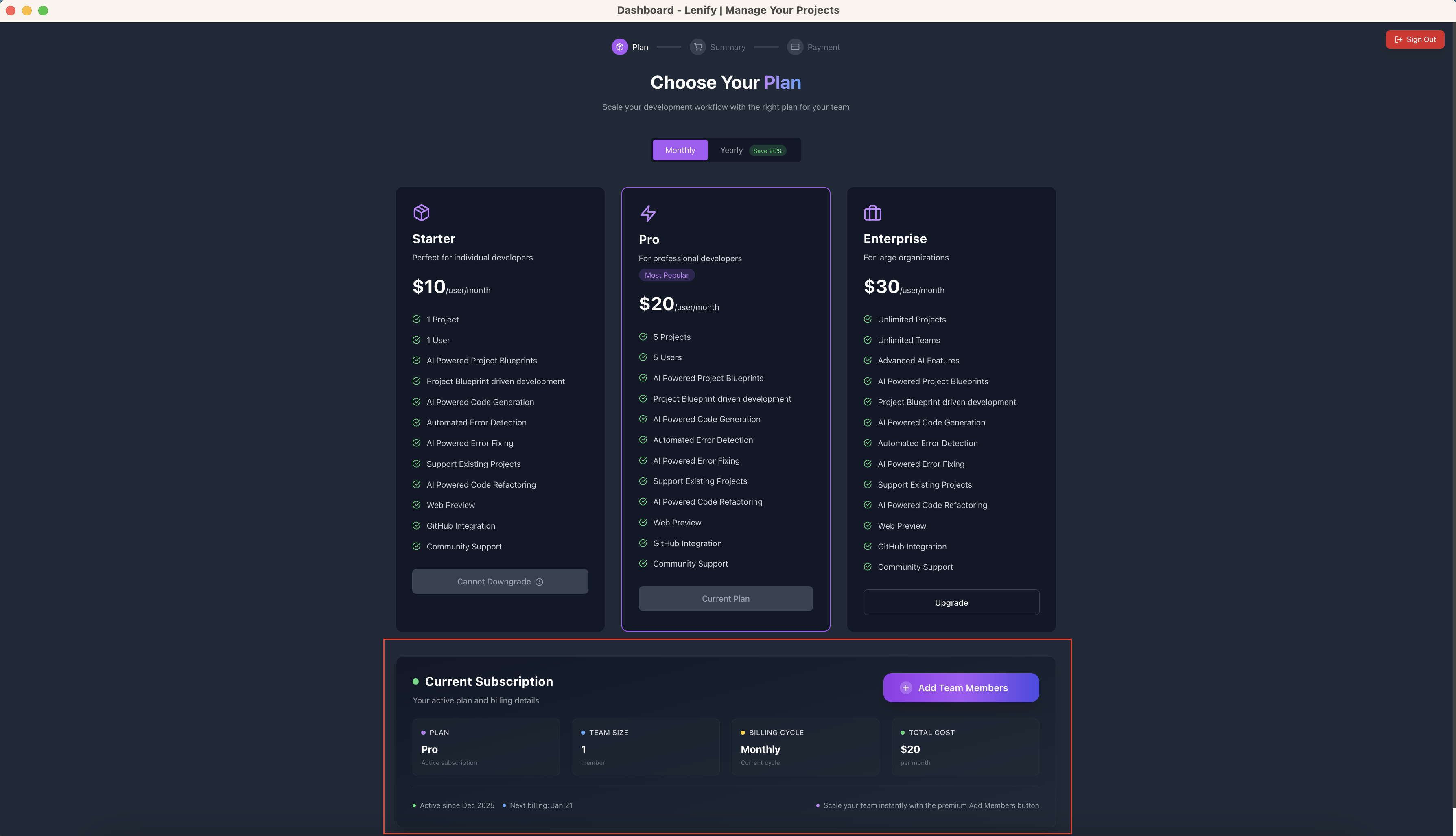 Step 1 plan selection interface showing current plan with "Add Team Members" action and team scaling context
Step 2: Team Summary (Member Addition)
Add Members Interface
Special Header:
- Title: "Add Team Members" (instead of "Subscription Summary")
- Info Badge: Blue notification explaining the process
- Context Message: "You're adding team members to your current [Plan] plan. Your plan and billing cycle will remain the same."
Team Configuration
Current Team Information:
- Current Team Size: Existing member count displayed
- Plan Capacity: Maximum allowed members shown
- Available Slots: Remaining capacity calculated
Team Size Selector:
- Minimum Enforced: Cannot go below current team size
- Current + New: Selector starts at current size
- Increment/Decrement: Buttons to adjust team size
- Direct Input: Number field with validation
- Maximum Limit: Pro (10), Enterprise (100)
Validation Features:
- Cannot reduce below current team size
- Custom validation message: "Minimum [X] members required (current team size)"
- Real-time validation feedback
- Clear limit indicators
Pricing Calculation (Addition Only)
Member Addition Pricing:
- Current Cost: What you're currently paying
- Additional Members: Number of new members being added
- Additional Cost: Cost for new members only
- New Total: Updated subscription cost
- Per Member Cost: Consistent with existing plan
Billing Impact:
- Immediate Charge: Prorated amount for new members
- Next Bill: Full cost for entire team
- Same Cycle: Billing frequency unchanged
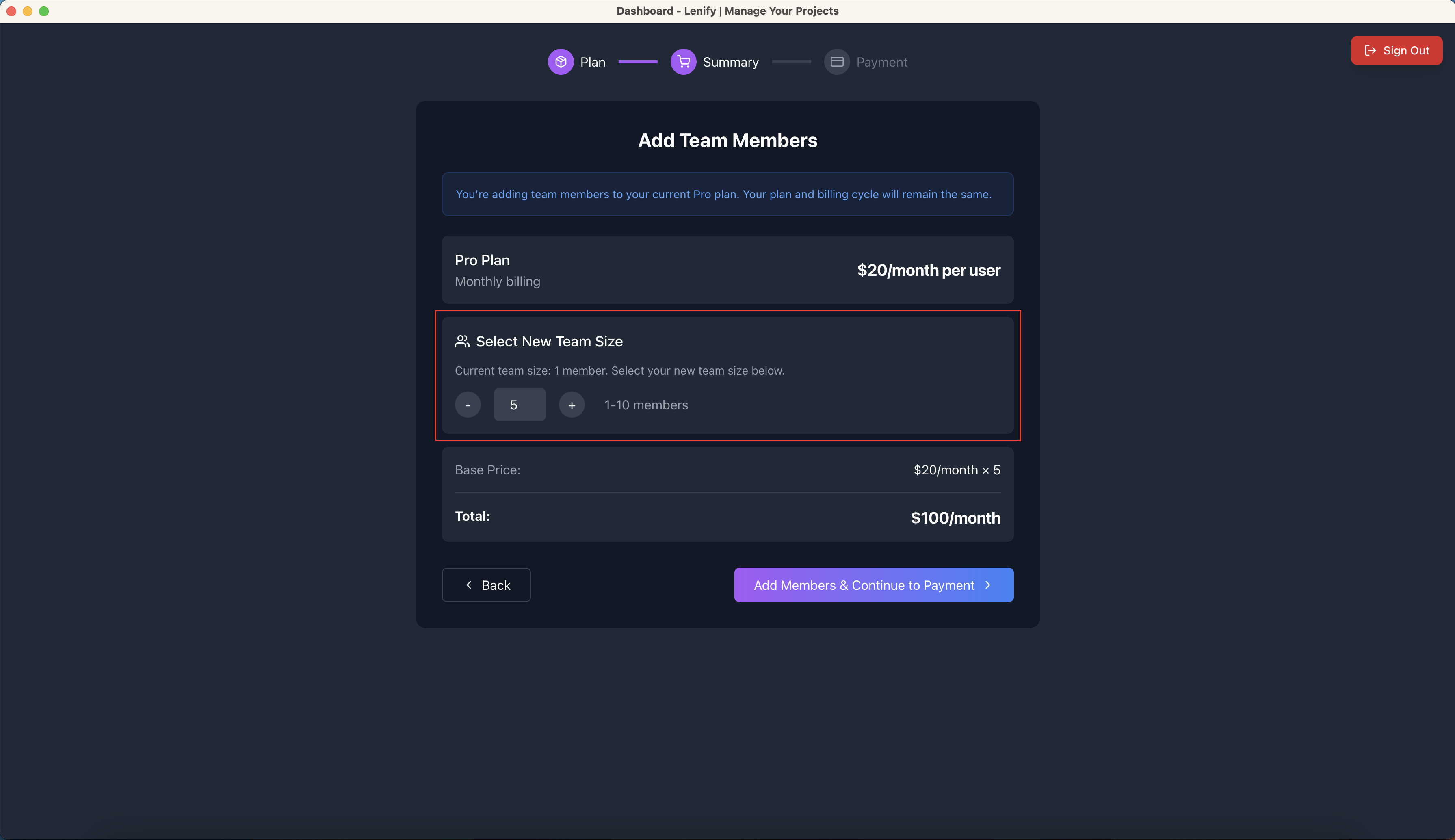 Step 2 team summary interface showing current team size, member addition options, and pricing calculations for additional members
Navigation
- Back button → Returns to subscription display
- Continue button → Proceeds to Step 3 with member addition details
Step 3: Payment Processing (Member Addition)
Member Addition Payment Flow
Same 3 sub-sections with member-specific content:
Sub-Step 1: Customer Profile
- Pre-populated with existing customer information
- All current billing details displayed
- Option to update information if needed
- Faster processing due to existing data
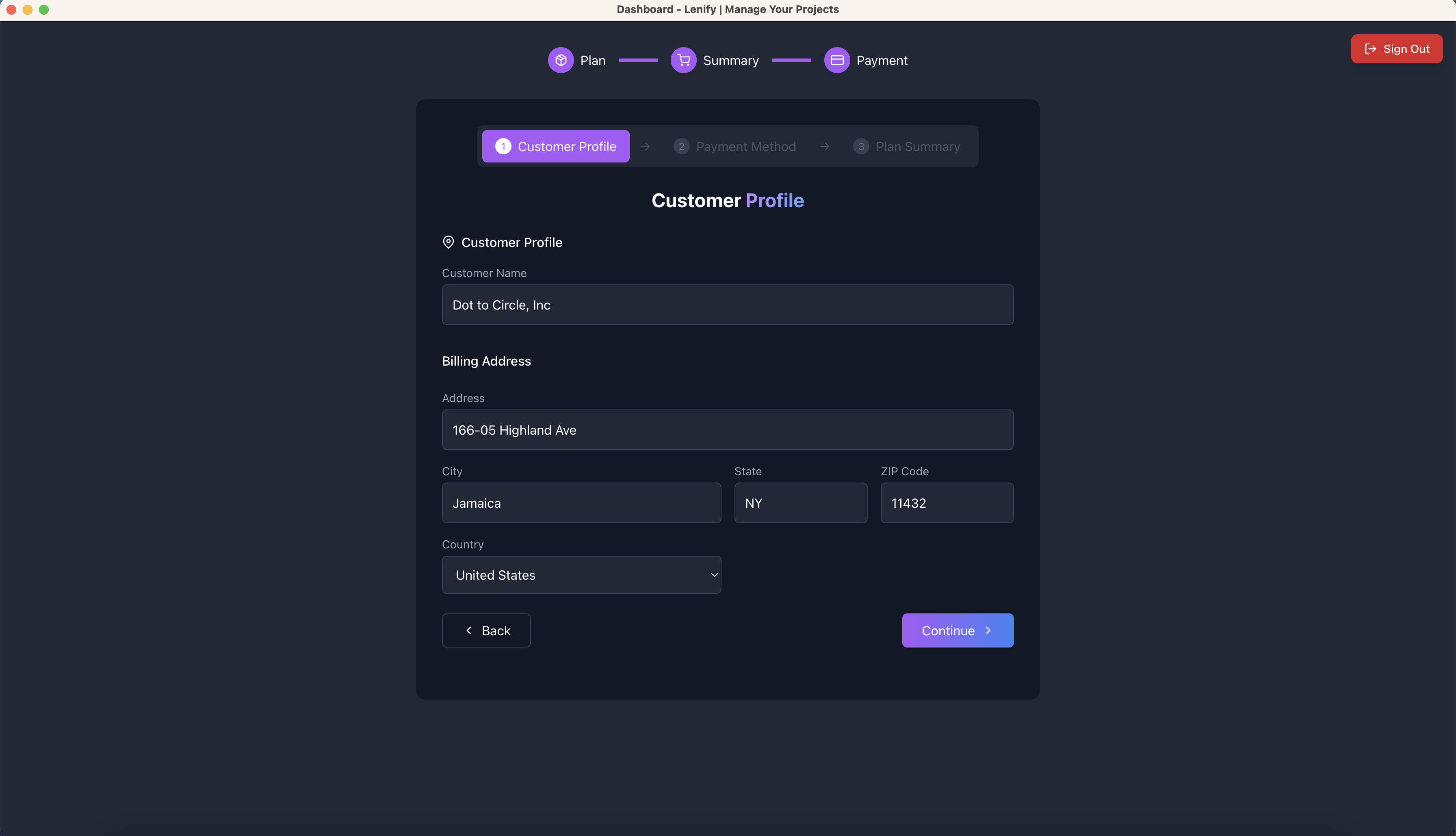 Sub-Step 1: Customer profile interface pre-populated with existing billing information for streamlined team member addition
Sub-Step 2: Payment Method
Existing User Experience:
- Current payment methods displayed
- Default payment method pre-selected
- Seamless payment processing
- Option to add new payment method if desired
 Sub-Step 2: Payment method selection showing existing payment options with default method pre-selected for team member addition
Sub-Step 3: Member Addition Summary
Addition Order Summary:
- Current Plan: Plan tier (unchanged)
- Current Team: Existing member count
- New Team Size: Updated member count
- Additional Members: Number of members being added
- Additional Cost: Cost for new members
- New Total: Updated subscription amount
Member Addition Processing:
- Payment processing for additional members only
- Loading states: "Processing Team Addition..." → "Members Added Successfully!"
- Immediate team capacity activation
- Team invitation capabilities unlocked
Final Action Button:
- Add Members - $[Additional Amount]/[period] button
- Shows only the incremental cost
- Processing specific to member addition
- Success message: "Team members added successfully!"
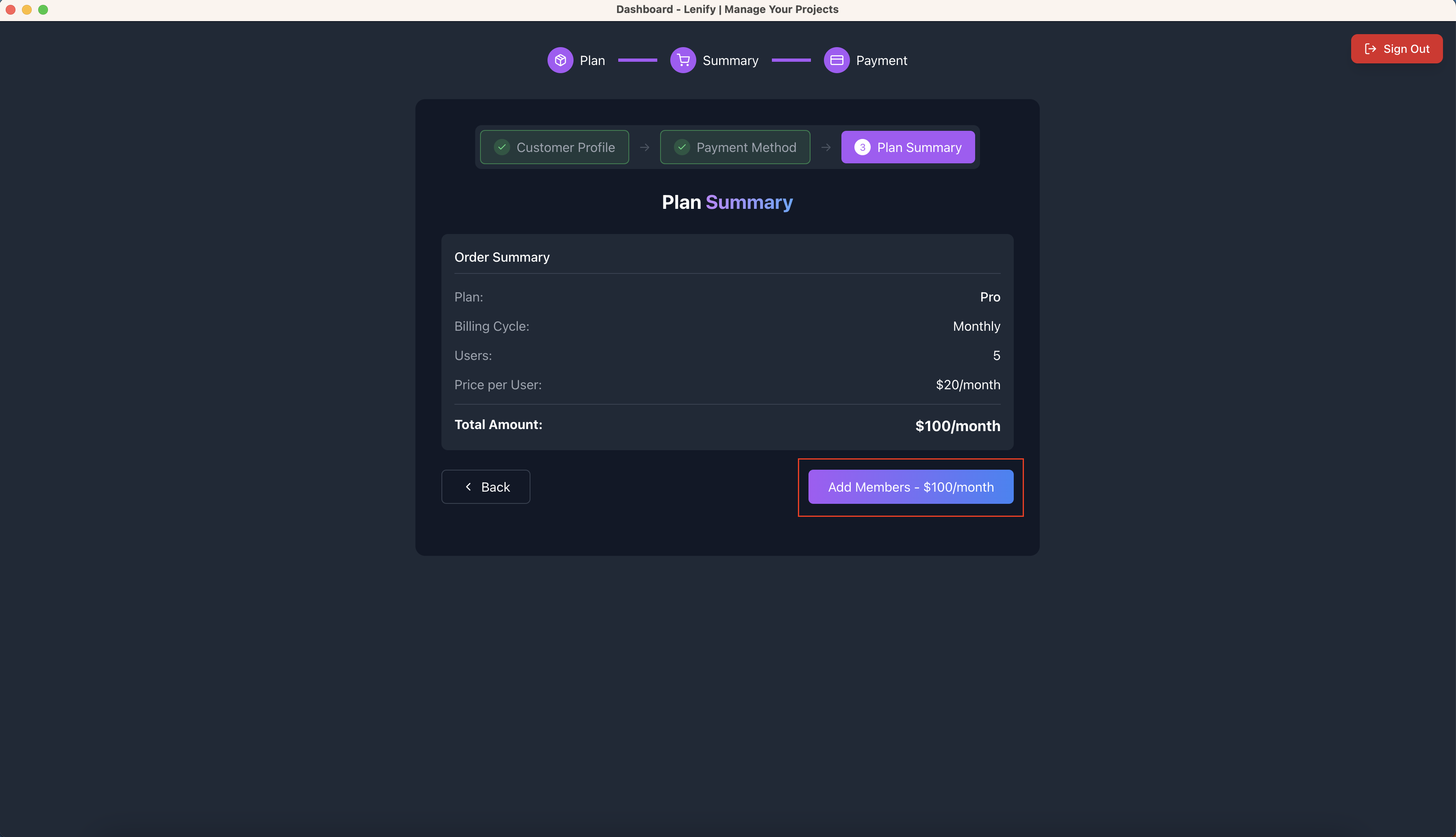 Sub-Step 3: Member addition order summary showing current team size, additional members, incremental cost, and final "Add Members" action button
Navigation
- Back button → Returns to Sub-Step 2
- Add Members button → Completes member addition
Post-Addition
Immediate Changes
Upon successful member addition:
- Team Capacity Updated: New member slots immediately available
- Invitation Access: Ability to invite new team members
- Billing Adjustment: Next invoice reflects new team size
- Usage Tracking: Updated team usage monitoring
- Dashboard Updates: Team management interface reflects new capacity
Team Management
New Capabilities:
- Invite Members: Send invitations to new team members
- Member Management: Admin controls for team oversight
- Collaboration Tools: Enhanced team features activation
- Usage Distribution: Resource allocation across larger team
Billing Impact
Cost Changes:
- Immediate Charge: Prorated cost for new members for current period
- Next Billing: Full cost for entire expanded team
- Same Plan: No change to plan features or billing cycle
- Invoice Record: Member addition transaction recorded
Team Addition Scenarios
Pro Plan Member Addition
- Current Limit: Up to 10 total members
- Addition Process: Add members up to limit
- Cost Impact: $20 × new member count (monthly) or $192 × new member count (yearly)
- Feature Access: Same Pro features for all members
Enterprise Plan Member Addition
- Current Limit: Up to 100 total members
- Addition Process: Significant scaling capability
- Cost Impact: $30 × new member count (monthly) or $288 × new member count (yearly)
- Feature Access: Same Enterprise features for all members
Billing Cycle Consistency
- Monthly Plans: Additional members billed monthly
- Yearly Plans: Additional members billed yearly with same 20% discount
- Prorated Charges: Immediate billing for current period remainder
- Cycle Maintenance: No change to billing frequency or dates
Navigation Flow Summary
Limitations and Notes
Plan Restrictions
- Starter Plans: Cannot add members (upgrade required)
- Pro Plans: Maximum 10 total members
- Enterprise Plans: Maximum 100 total members
Billing Considerations
- Immediate Charges: Prorated billing for current period
- Plan Consistency: No changes to plan features
- Usage Monitoring: Increased usage tracking for larger teams
Related Documentation
Continue to:
- New User Subscription - For first-time subscriptions
- Plan Upgrade - For upgrading plan tiers
- Dashboard Overview - For managing team members and settings
- Billing Management - For billing oversight