Plan Upgrade
Complete guide for existing users upgrading to a higher subscription tier.
Overview
The plan upgrade flow is designed for users with an active subscription who want to upgrade to a higher tier plan. This follows the same 3-step process but with upgrade-specific features and messaging.
When to Use This Flow
- You have an active Starter plan and want to upgrade to Pro or Enterprise
- You have an active Pro plan and want to upgrade to Enterprise
- You want to switch from monthly to yearly billing (treated as upgrade)
Note: Downgrading to lower tiers requires different handling due to usage limit restrictions.
Step Flow
Step 1: Plan Selection
Current Subscription Display
Active Subscription Overview:
- Plan: Current subscription tier with active indicator
- Team Size: Current member count
- Billing Cycle: Monthly or Yearly status
- Total Cost: Current subscription cost per period
Available Upgrade Options
Plan Cards Display:
- Current Plan: Shows "Current Plan" button (disabled)
- Lower Tiers: Shows "Cannot Downgrade" with tooltip explanation
- Higher Tiers: Shows "Upgrade" button (enabled)
- Billing Cycle Changes: Shows "Upgrade to Yearly" or "Downgrade to Monthly"
Upgrade Restrictions
Downgrade Prevention:
- Tooltip explains: "Cannot downgrade to this plan"
- Message: "Your current usage exceeds this plan's limits. Please reduce your usage first."
- Only upgrade paths are enabled
Plan Comparison
Enhanced comparison table showing:
- Current plan highlighted with "Current" badge
- Feature differences between current and target plans
- Clear visual indicators for plan improvements
Action Buttons
- Upgrade button → Proceeds to Step 2 with upgrade flow
- Disabled buttons for current plan and downgrades
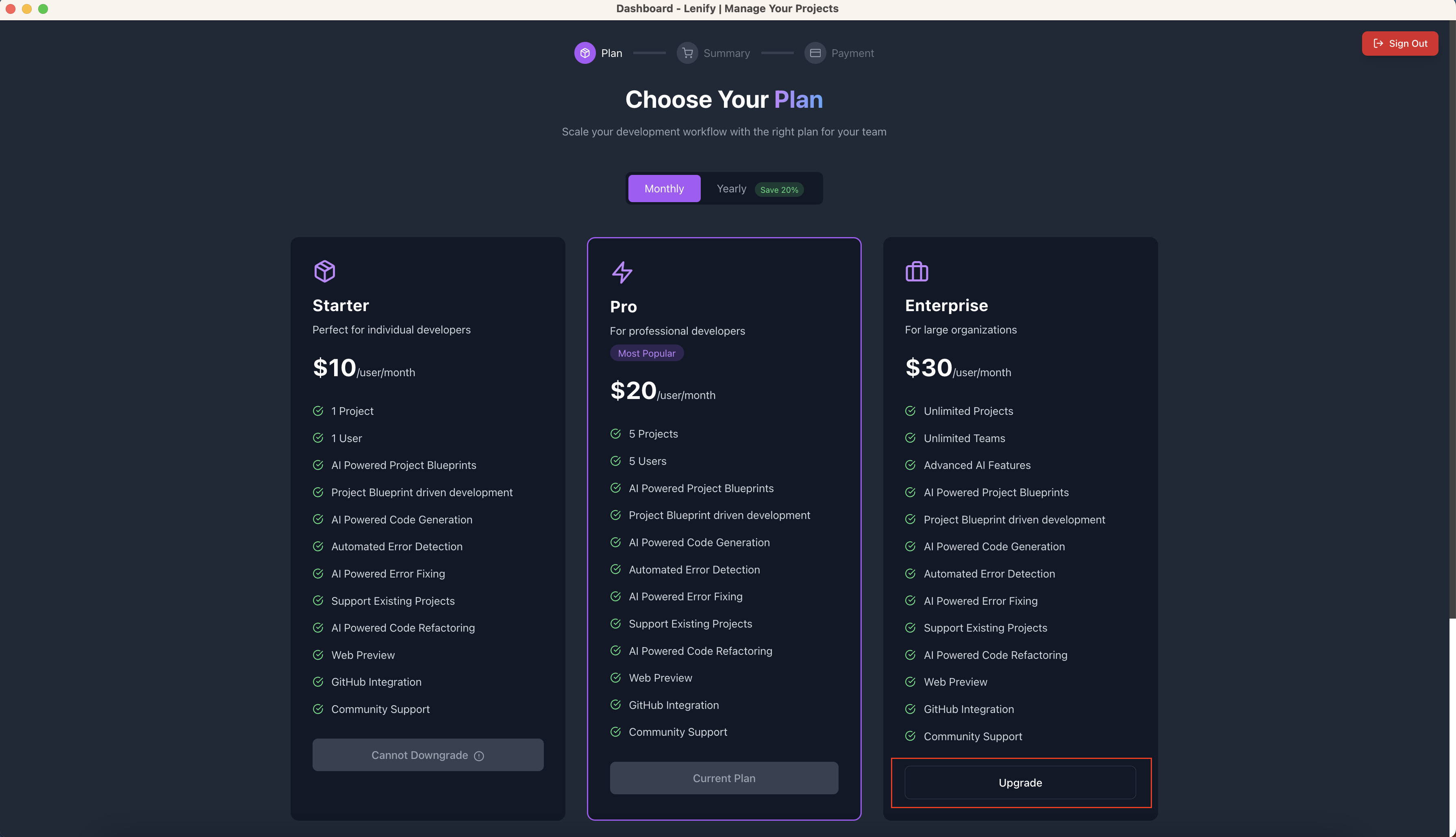 Step 1 plan selection interface showing current plan, available upgrades, and disabled downgrade options
Step 2: Upgrade Summary
Plan Change Overview
Upgrade Information Display:
- From: Current plan details
- To: Target plan details
- Improvements: New features being unlocked
- Billing: Prorated billing explanation
Team Configuration
Existing Team Preservation:
- Minimum member count enforced (current team size)
- Cannot reduce below current member count
- Can increase team size as part of upgrade
Team Size Options:
- Pro Upgrade: Maintain current size or increase (up to 10 total)
- Enterprise Upgrade: Maintain current size or increase (up to 100 total)
Pricing Calculation
Upgrade Pricing Display:
- Current Cost: What you're currently paying
- New Cost: What you'll pay after upgrade
- Prorated Amount: Immediate charge explanation
- Next Billing: When full new rate begins
Prorated Billing:
- Immediate charge for remaining billing period
- Credit for unused portion of current plan
- New plan pricing starts next billing cycle
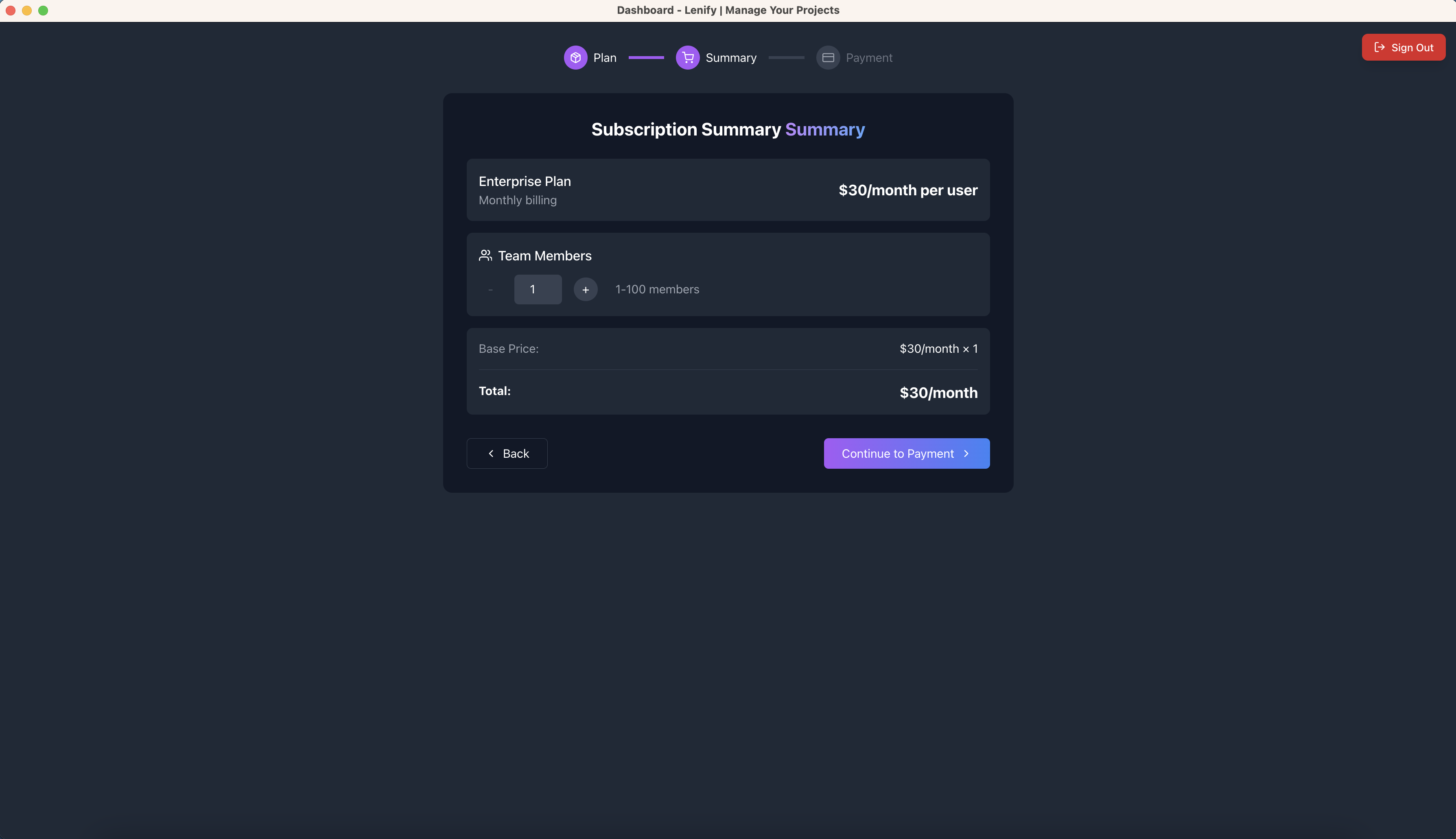 Step 2 upgrade summary showing plan comparison, team configuration, and prorated billing calculations
Navigation
- Back button → Returns to Step 1 (Plan Selection)
- Continue button → Proceeds to Step 3 (Payment Processing)
Step 3: Payment Processing
Upgraded Payment Flow
The payment process follows the same 3 sub-sections with upgrade-specific content:
Sub-Step 1: Customer Profile
- Pre-populated with existing customer data
- All existing billing information displayed
- Option to update any information before upgrade
- Same validation requirements as new subscription
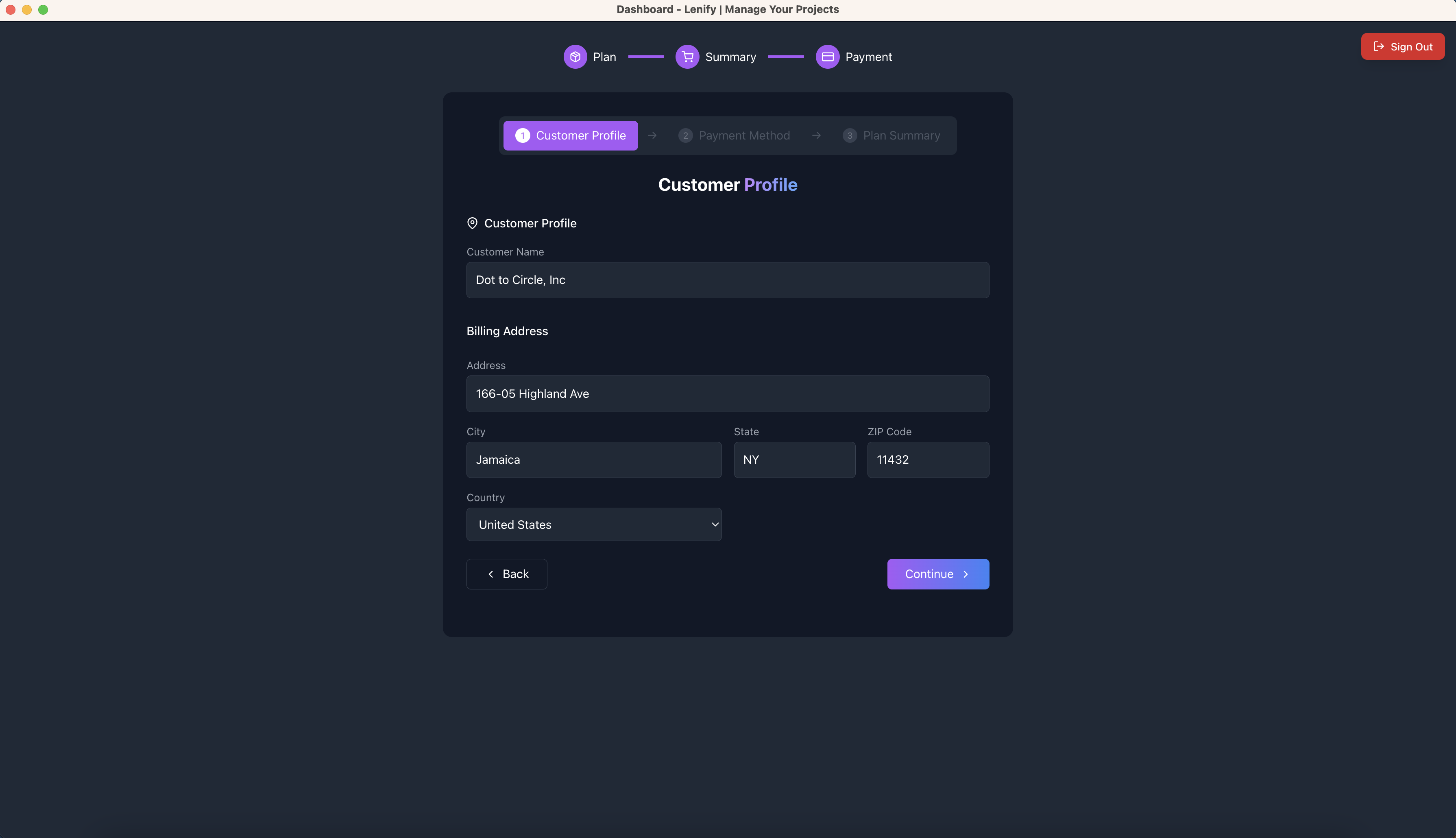 Sub-Step 1 customer profile form pre-populated with existing billing information and update options
Sub-Step 2: Payment Method
Enhanced for Existing Users:
- Displays existing saved payment methods
- Default payment method auto-selected
- Option to add new payment method
- Uses existing payment method for upgrade by default
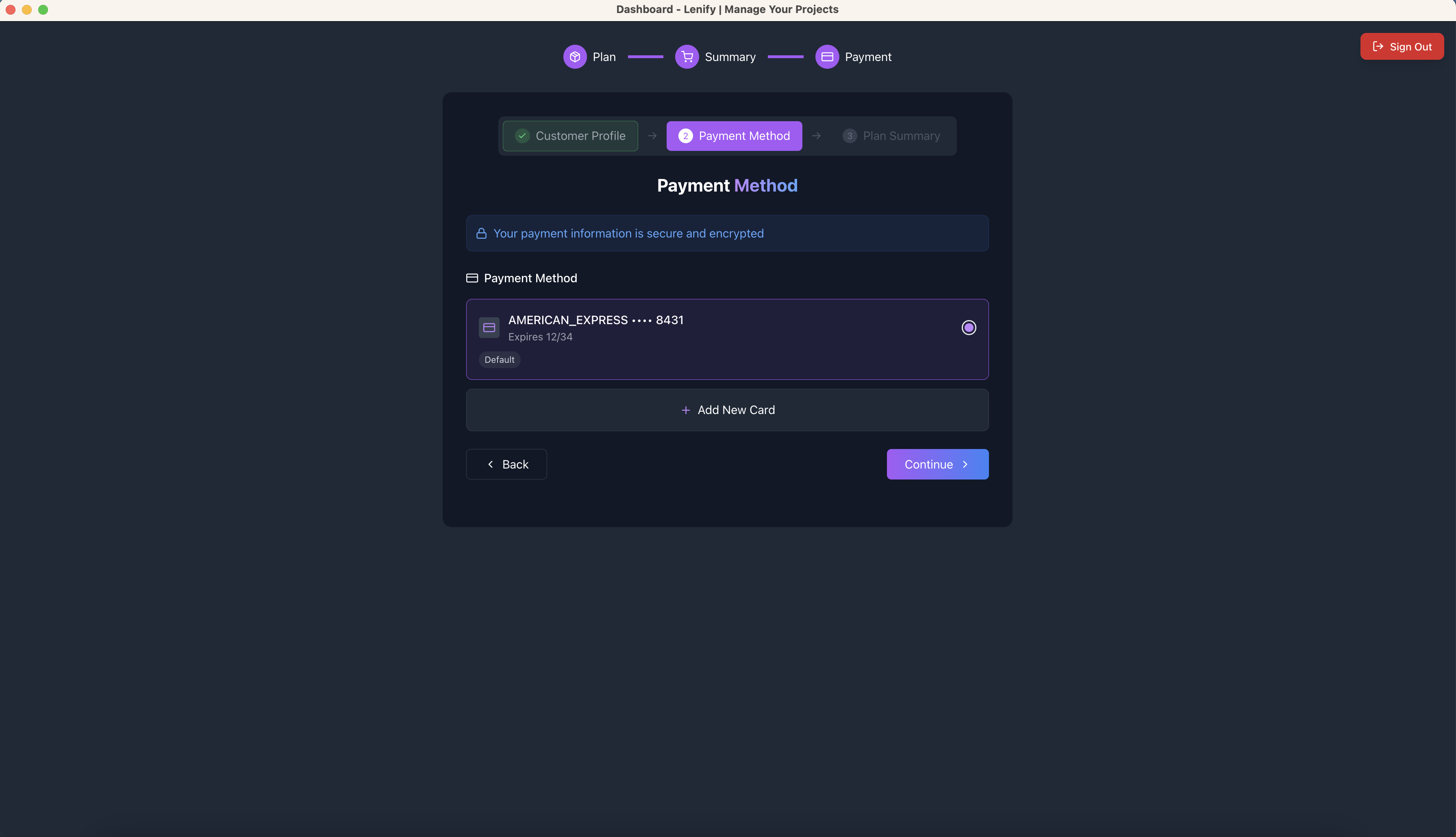 Sub-Step 2 payment method selection showing saved payment methods with default selection for upgrade
Sub-Step 3: Upgrade Summary & Processing
Upgrade Order Summary:
- Current Plan: What you're upgrading from
- New Plan: What you're upgrading to
- Billing Cycle: Maintained or changed
- Users: Final member count
- Prorated Charge: Immediate billing amount
- Next Bill Amount: Future billing amount
Upgrade Processing:
- Real-time payment processing for prorated amount
- Loading states: "Processing Upgrade..." → "Upgrade Successful!"
- Immediate plan feature activation
- Dashboard redirect with upgrade confirmation
Final Action Button:
- Upgrade Plan - $[Amount]/[period] button
- Processing states specific to upgrades
- Success message: "Subscription upgraded successfully!"
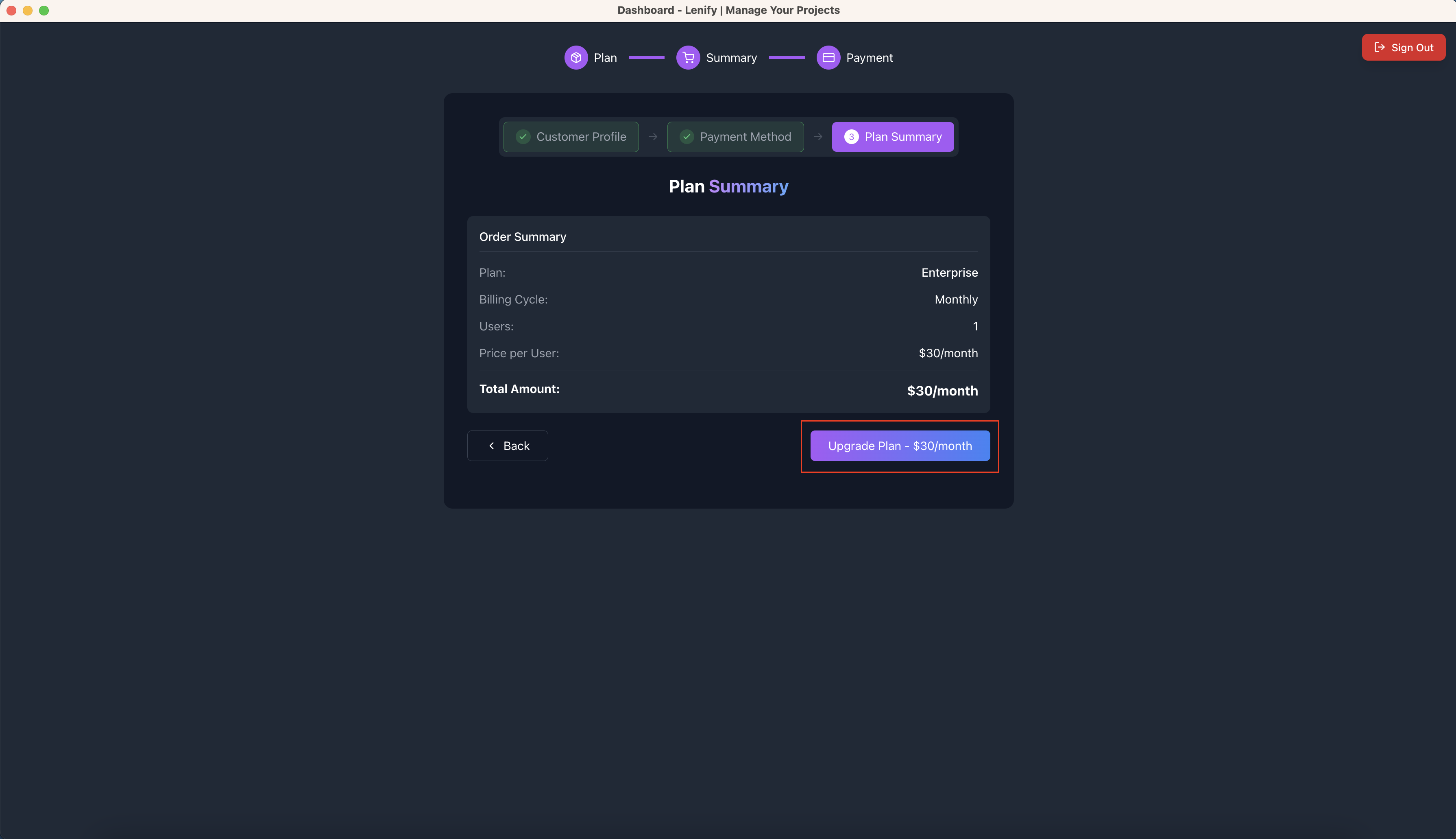 Sub-Step 3 upgrade confirmation showing plan change summary, prorated billing, and upgrade processing
Navigation
- Back button → Returns to Sub-Step 2
- Upgrade Plan button → Completes upgrade processing
Post-Upgrade
Immediate Changes
Upon successful upgrade:
- Instant Plan Activation: New plan features immediately available
- Feature Unlock: Access to upgraded capabilities
- Usage Limits: Increased limits take effect immediately
- Billing Update: Next invoice reflects new plan pricing
- Team Access: Ability to invite additional members (if applicable)
Dashboard Updates
- Plan tier indicator updated
- New feature access enabled
- Usage tracking updated to new limits
- Team management options expanded (Pro/Enterprise)
Billing Impact
- Immediate Charge: Prorated amount for current period
- Next Billing: Full new plan amount
- Invoice History: Upgrade transaction recorded
- Automatic Renewal: Continues with new plan pricing
Upgrade Scenarios
Starter to Pro Upgrade
- Features Added: Team collaboration, priority support, advanced tools
- Limits Increased: 1→5 projects, 1→5 users
- Team Growth: Can immediately invite up to 4 additional members
Starter/Pro to Enterprise Upgrade
- Features Added: Advanced analytics, custom integrations, 24/7 support
- Limits: Unlimited projects and teams
- Team Growth: Can scale to 100 members
Monthly to Yearly Upgrade
- Savings: 20% discount applied immediately
- Billing: Prorated to yearly cycle
- Features: Same plan features with cost savings
Navigation Flow Summary
Related Documentation
Continue to:
- New User Subscription - For first-time subscriptions
- Add Team Members - For team scaling only
- Billing Management - For ongoing billing management
- Dashboard Overview - To explore upgraded features