Source Control
Master Git integration in Lenify with professional version control features, visual diff viewing, and blueprint-aware source control.
Professional Git Integration
Lenify provides comprehensive Git integration with a VS Code-style interface, offering enterprise-grade version control capabilities for blueprint-driven development.
Visual Source Control Interface
Modern Git Workflow:
- Status Indicators: Color-coded file status with M (Modified), A (Added), D (Deleted), U (Untracked) badges
- Interactive File Management: Stage, unstage, and discard changes with single-click actions
- Smart Commit Interface: Expandable commit input with summary/description fields and character count guidance
- Branch Management: Create, switch, and manage branches through intuitive dropdown interface
- Recent Commits History: View detailed commit history with authors, timestamps, and commit messages
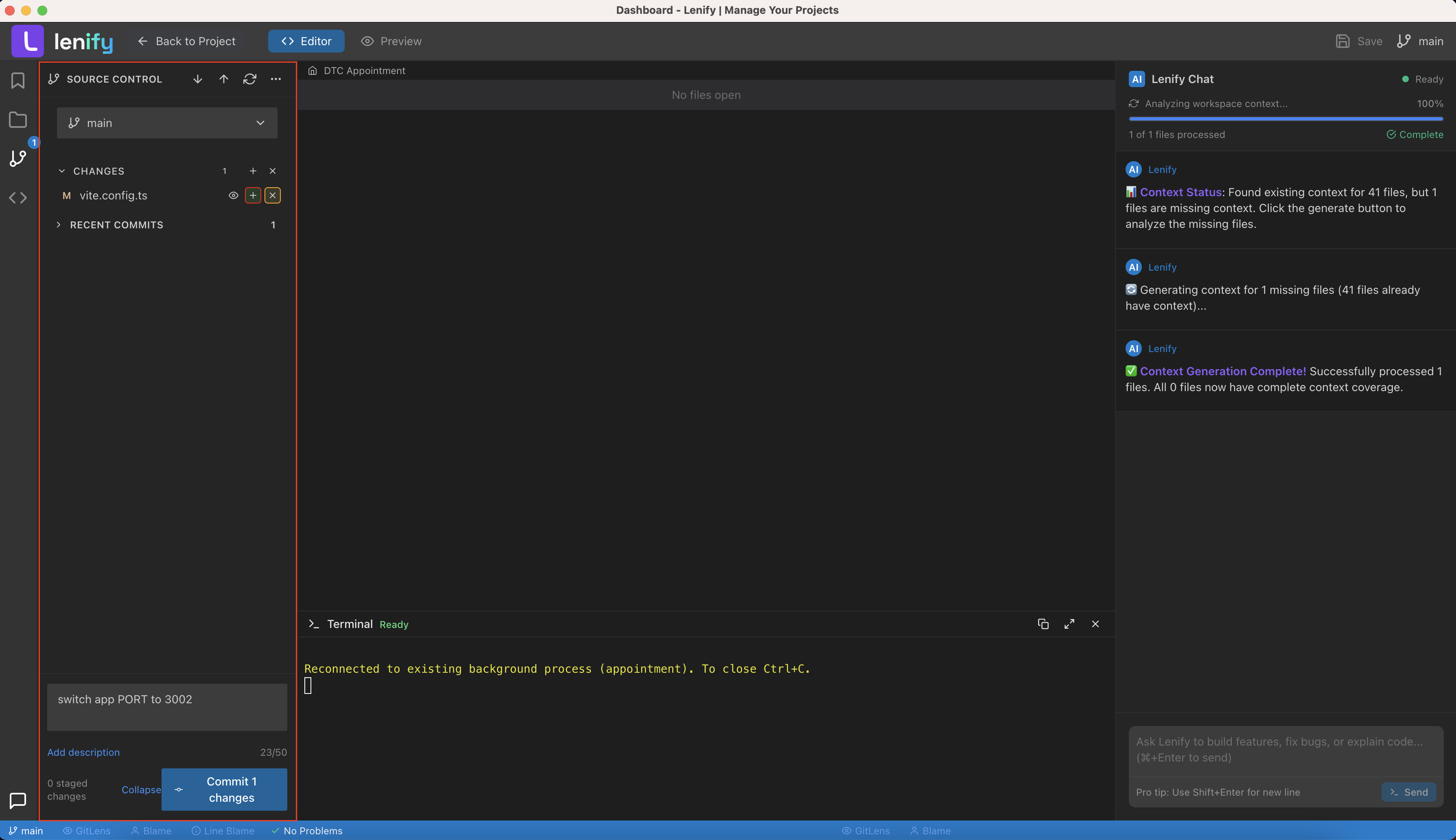 Professional Git integration with staging, commits, branch management, and comprehensive diff viewing capabilities
Advanced Git Features
Professional Workflow Tools:
- Batch Operations: Stage all, unstage all, and discard all changes with single actions
- Auto-Staging: Automatically stages unstaged files when committing if no files are manually staged
- Diff Viewer Integration: Side-by-side comparison of file changes with syntax highlighting
- Git Lens Integration: Inline blame information and historical context for individual code lines
- Conflict Resolution: Visual merge conflict resolution with side-by-side editing
Repository Management:
- Repository Initialization: Auto-detect and initialize Git repositories for new projects
- Remote Management: Configure and manage multiple remote repositories
- Branch Visualization: Visual representation of branch structure and relationships
- Tag Management: Create, list, and manage Git tags for releases and milestones
Git File Management
Visual File Status Tracking
Real-Time Status Updates:
- File Status Indicators: Modified (M), Added (A), Deleted (D), Untracked (U) badges with VS Code-style colors
- Interactive File Operations: Click files to view, stage, unstage, or discard changes
- Batch Operations: Stage All, Unstage All, and Discard All changes with single clicks
- Auto-Staging: Automatically stages unstaged files when committing if no staged files exist
- Change Count Display: Real-time count of modified files shown in sidebar
File Organization:
- Collapsible Sections: Separate staging area and changes sections with expand/collapse controls
- File Path Display: Full file paths with proper truncation for long paths
- Quick Actions: Stage, unstage, and discard buttons directly on each file
- Diff Integration: View file changes with integrated diff viewer
Branch Management
Basic Branch Operations
Branch Control:
- Branch Selector: Dropdown interface showing current branch with visual indicators
- Branch Switching: Switch between existing local and remote branches
- New Branch Creation: Create new branches with inline input form
- Branch Display: Show current branch status with proper remote tracking
- Local & Remote Branches: Display both local and remote branch references
Branch Interface Features:
- Visual Current Branch: Highlighted current branch with check mark indicator
- Remote Branch Tags: Visual distinction between local and remote branches
- Branch Creation Form: Inline form with validation for new branch names
- Quick Branch Actions: One-click branch switching with automatic status refresh
Diff Viewing and File Changes
Integrated Diff Viewer
Change Visualization:
- Side-by-Side Diff: Split view showing original and modified file content
- Syntax Highlighting: Proper syntax highlighting maintained in diff display
- Line-by-Line Changes: Individual line additions, deletions, and modifications
- Context Lines: Surrounding code context for better understanding of changes
- Visual Indicators: Color-coded additions (green), deletions (red), and context (neutral)
Diff Navigation:
- File Selection: Click any modified file to view its diff
- Change Statistics: Summary of additions and deletions for each file
- Expandable Viewer: Full-screen diff viewing with close functionality
- Refresh Controls: Reload diff content to reflect latest changes
Core Git Operations
Essential Git Workflow
Standard Git Commands:
- Commit Interface: Expandable commit form with summary and description fields
- Character Guidance: Commit message length indicators and best practice hints
- Push/Pull Operations: Toolbar buttons for synchronizing with remote repositories
- Repository Status: Real-time Git repository status and branch information
- Refresh Functionality: Manual refresh to update Git status and recent commits
Repository Management:
- Git Initialization: Automatic Git repository detection and initialization
- Remote Tracking: Display of remote repository URLs and connection status
- Commit History: Recent commits display with author, date, and message information
- Working Directory: Clear indication of working directory status and changes
Repository Integration
Git Platform Support
Current Implementation:
- Local Git Operations: Full support for local Git repository management
- Remote Repository Access: Basic push/pull operations with remote repositories
- Branch Synchronization: Sync local branches with remote repository branches
- Commit Management: Local commit creation and remote repository synchronization
Development Workflow:
- Standard Git Flow: Traditional Git workflow with staging, committing, and pushing
- File Management: Complete file staging and unstaging capabilities
- Change Tracking: Comprehensive tracking of file modifications and additions
- Repository History: Access to recent commit history and branch information
Continue to AI Assistance to learn about AI-powered development features, or explore Blueprint-Driven Development for task-based development workflow.