Desktop App Installation
Complete installation instructions for all supported operating systems.
Windows Installation
Installation Process
- Run Installer: Double-click the downloaded
.exeinstaller - Installation Wizard: Follow the step-by-step installation wizard
- Installation Location: Choose installation directory (default recommended)
- Desktop Shortcut: Option to create desktop shortcut
- Start Menu: Automatically added to Start Menu
Launch Application
- Start Menu: Find Lenify in Start Menu
- Desktop Shortcut: Use desktop shortcut if created
- Sign In: Enter your account credentials to begin
macOS Installation
Installation Process
- Open DMG: Double-click the downloaded
.dmgfile - Drag to Applications: Drag Lenify icon to Applications folder
- Security Prompt: Allow security permissions if prompted by macOS
- Gatekeeper: Approve the application when macOS requests permission
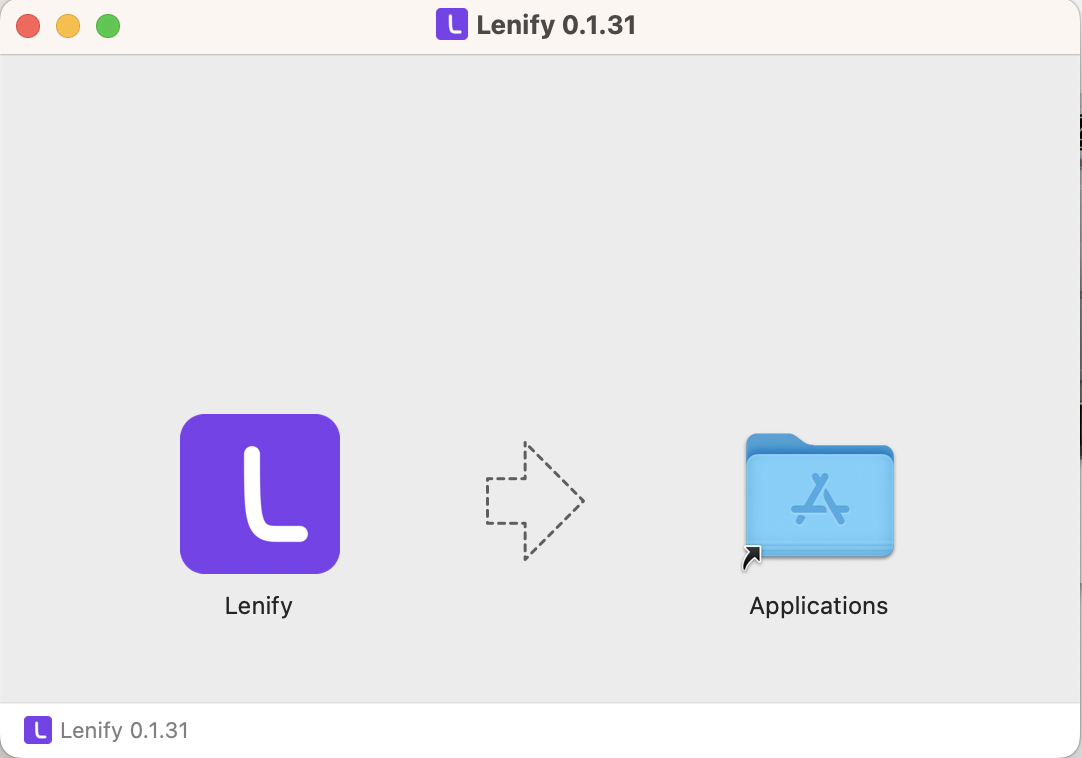 macOS installation interface showing the DMG file with Lenify app icon ready to be dragged to Applications folder
Launch Application
- Applications Folder: Open Applications and double-click Lenify
- Spotlight Search: Use Spotlight (Cmd+Space) to search "Lenify"
- Dock: Add to Dock for easy access
- Sign In: Enter your account credentials to begin
macOS Security
- First Launch: macOS may require approval for unknown developers
- System Preferences: Go to Security & Privacy to allow Lenify
- Notarization: Lenify is notarized by Apple for security
Linux Installation
Debian/Ubuntu Installation
-
Install Package: Run in terminal:
📄Codesudo dpkg -i lenify-*.deb -
Resolve Dependencies: If needed, fix dependencies:
📄Codesudo apt-get install -f
Launch Application
- Application Menu: Find Lenify in your applications menu
- Terminal: Launch with
lenifycommand - Desktop Environment: Available in most desktop environments
- Sign In: Enter your account credentials to begin
Post-Installation
First Launch
After installation, the first launch will:
- Initialize Application: Set up local configuration
- Check Updates: Verify you have the latest version
- Sign In Screen: Present authentication interface
- Account Setup: Guide you through account configuration
Account Authentication
- Email & Password: Use registration credentials
- Account Activation: Ensure email verification is complete
- Dashboard Access: Successful login takes you to the dashboard
Troubleshooting
Windows Issues
- Antivirus Software: May block installation - add exception
- Administrator Rights: Run installer as administrator if needed
- Windows Defender: Allow application through Windows Defender
macOS Issues
- Security Warnings: Go to System Preferences > Security & Privacy
- Gatekeeper: Right-click and select "Open" for first launch
- Quarantine: Use
xattr -d com.apple.quarantine /Applications/Lenify.appif needed
Linux Issues
- Permission Errors: Ensure you have sudo privileges
- Missing Dependencies: Install missing packages with apt-get
- AppImage Alternative: AppImage version available if needed
Continue to System Requirements to verify your system meets all requirements.